
Changing the Network Configuration of Oracle Weblogic Server 11g
This section describes how to change the host name, domain name, IP address, or any combination of these, of a host that contains the following installation type
- Oracle WebLogic Server and Java components. When you change the host name, domain name, or IP address of Oracle WebLogic Server, you also automatically change the information for Java components, such as Oracle SOA Suite and Oracle WebCenter components that are deployed to Oracle WebLogic Server.
- Oracle Fusion Middleware Web Tier components, Oracle Web Cache and Oracle HTTP Server. You can change the host name or the IP address.
The following topics describe how to change the host name, domain name, or IP address:
- Changing the Network Configuration of a Managed Server
- Changing the Network Configuration of Web Tier Components
Changing the Network Configuration of a Managed Server
You can change the network configuration of a Managed Server using the Oracle WebLogic Server Administration Console.
To change the host name, domain name, or IP address of a Managed Server:
- Display the Administration Console.
- In the Change Center, click Lock & Edit.
- Create a machine, which is a logical representation of the computer that hosts one or more WebLogic Servers, and point it to the new host. (From the Home page, select Machines. Then, click New.) Follow the directions in the Administration Console help. You must disable Host Name Verification on Administration Servers that access Node Manager, as described in the Help.
- Change the Managed Server configuration to point to the new machine:
- From the left pane of the Console, expand Environment and then Servers. Then, select the name of the server.
- Select the Configuration tab, then the General tab. In the Machine field, select the machine to which you want to assign the server.
- Change Listen Address to the new host.
- Click Save.
- Start the Managed Server. You can use the Oracle WebLogic Server Administration Console, WLST, or the following command:
DOMAIN_NAME/bin/startManagedWeblogic.sh managed_server_name
admin_url
The Managed Server connects to the Administration Server and updates its configuration changes.
Changing the Network Configuration of Web Tier Components
If you change the host name, domain name, or IP address of a host that contains multiple Oracle instances, you must change the network configuration of each Oracle instance that resides on that host. You do not need to make changes to any system component that resides on another host.
You can change the network configuration of Oracle HTTP Server and Oracle Web Cache by using the following command:
(UNIX) ORACLE_HOME/chgip/scripts/chpiphost.sh
(Windows) ORACLE_HOME\chgip\scripts\chpiphost.bat
The format of the command is:
chgiphost.sh | chgiphost.bat
             [-noconfig] [-version] [-help]
             [ -oldhost old_host_name -newhost new_host_name]
             [-oldip old_IP_address -newip new_IP_address]
              -instanceHome Instance_path
The parameters have the following meanings:
- noconfig: The default for changing the network parameters.
- version: Displays the version of the chgiphost tool.
- help: Displays help for the command.
- oldhost: he fully qualified name of the old host. Use this parameter, with newhost, to change the host name or domain name, or both.
- newhost: The fully qualified name of the new host. Use this parameter, with oldhost, to change the host name or domain name, or both.
- oldip: The old IP address.
- newip: The new IP address.
- instanceHome: The full path of the Oracle instance.
For example, to change the host name, domain name, and IP address of a host that contains either Oracle HTTP Server or Oracle Web Cache, or both, perform the following tasks:
- Step 1, "Prepare Your Host"
- Step 2, "Change the Host Name, Domain Name, or IP Address"
- Step 3, "Run the chgiphost Command"
- Step 4, “Update Configuration Files”
- Step 5, “Update Weblogic Services”
- Step 6, "Restart Processes"
Step 1: Prepare Your Host
Prepare your host for the change:
- Perform a backup of your environment before you start this procedure.
Take a snapshot of the old server: sc-weblogic (192.168.1.29) - Shutdown all Oracle Fusion Middleware processes.
- Stop OPMN components
- Stop ManagedServers (WLS_FORMS, WLS_REPORTS)
- Stop NodeManager
- Stop AdminServer
Step 2: Change the Host Name, Domain Name, or IP Address
Update your operating system with the new host name, domain name, IP address, or any combination of these. Consult your operating system documentation for information on how to perform the following steps.
- Make the updates to your operating system to properly change the host name, domain name, or IP address.
- Restart the host, if necessary for your operating system.
- Verify that you can ping the host from another host in your network. Be sure to ping using the new host name to ensure that everything is resolving properly.
Change Hostname: sc-Weblogic to scWeblogic
Change IP address: 192.168.1.29 to 192.168.1.50
Step 3: Run the chgiphost Command
Follow these steps for each Oracle instance that contains Oracle HTTP Server or Oracle Web Cache on your host. Be sure to complete the steps entirely for one Oracle instance before you move on to the next.
- Log in to the host as the user that installed Oracle Fusion Middleware.
- Run the chgiphost command. The following example changes the host name from host_a to host_b and the domain name from dom_1 to dom_2 for an Oracle instance named inst_a.
chgiphost.sh -noconfig -oldhost host_a.dom_1 -newhost host_b.dom_2 -instanceHome /scratch/Oracle/Middleware/inst_a - Open command DOS with Administrator privileges
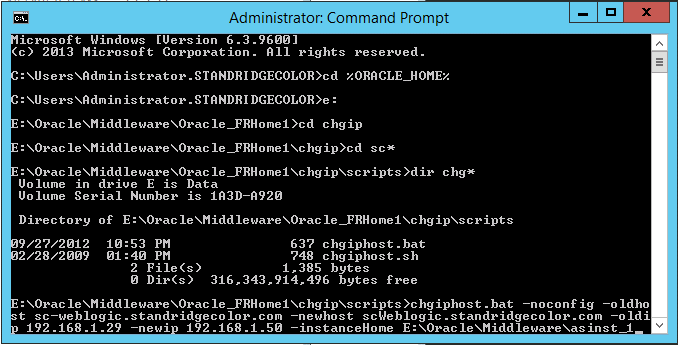
- Execute chgiphost command
cd %ORACLE_HOME%\Oracle_FRHome1\chgip\scripts

chgiphost.bat -noconfig -oldhost sc-weblogic.standridgecolor.com -newhost scWeblogic.standridgecolor.com -oldip 192.168.1.29 -newip 192.168.1.50 -instanceHome E:\Oracle\Middleware\asinst_1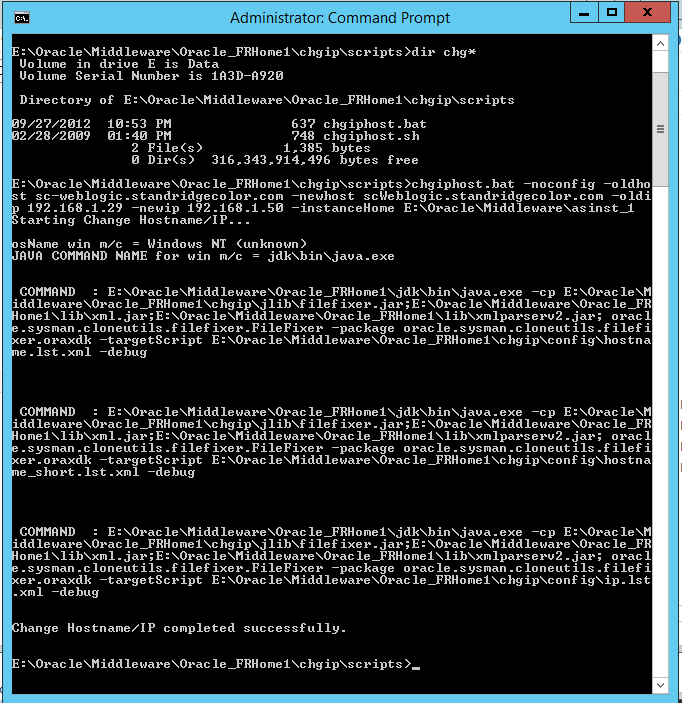
Step 4: Update Configuration Files
- Edit and Update config.xml file:
old value: sc-weblogic
new value: scWeblogic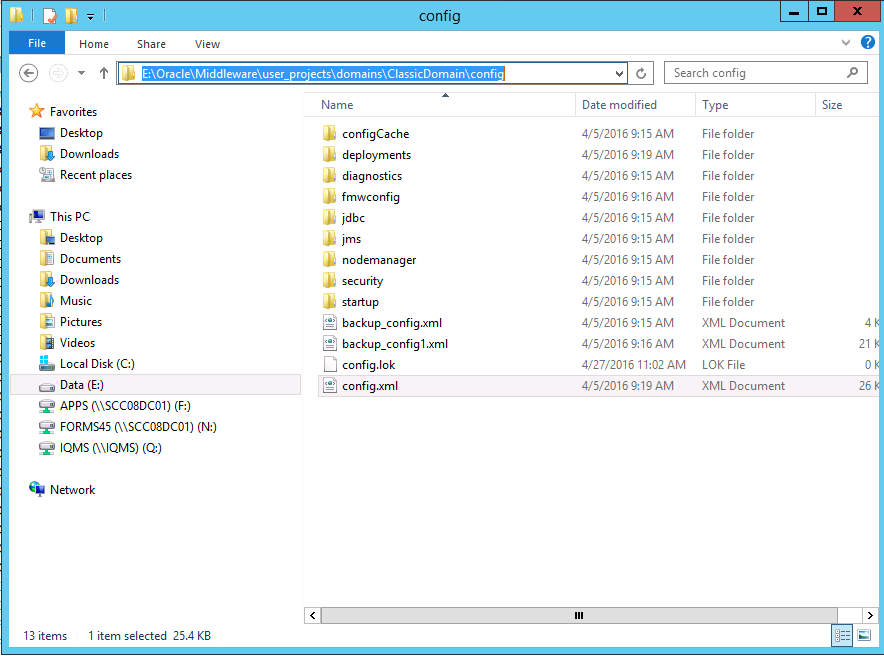
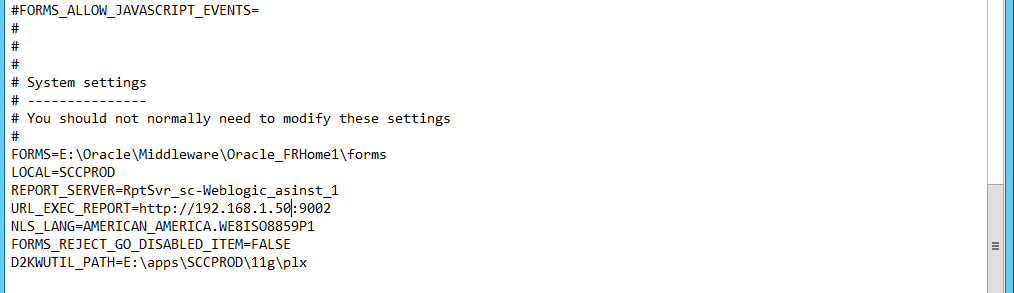
- Edit and Update Environment file of application
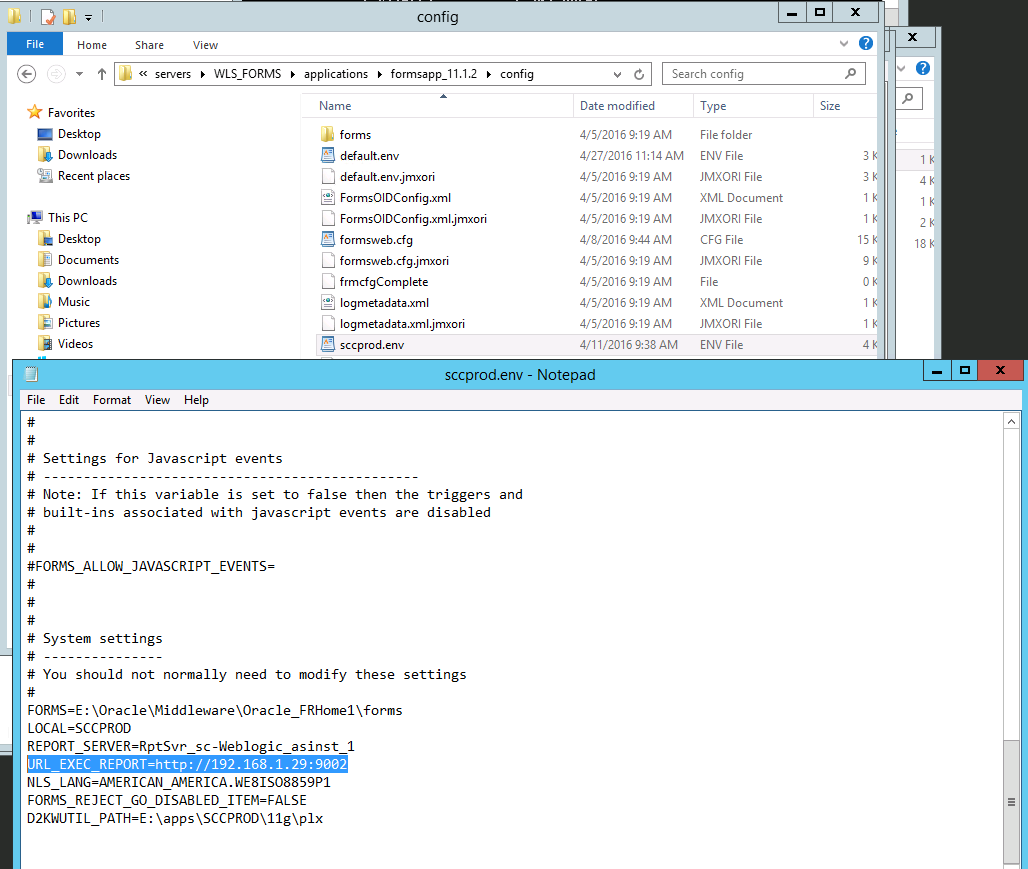
New value:
Step 5: Update Weblogic Services
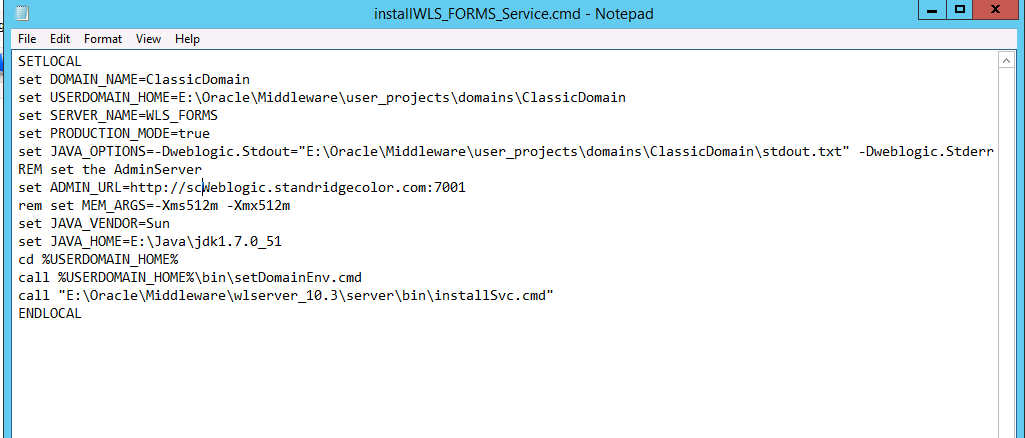
Update Weblogic Services
Edit and update file installWLS_FORMS_Service.cmd
$ORACLE_HOME/wlserver_10.3/server/bin
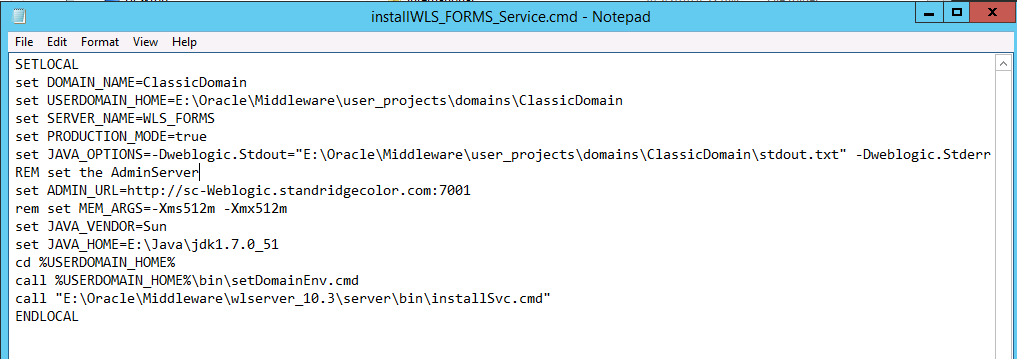
New Value:
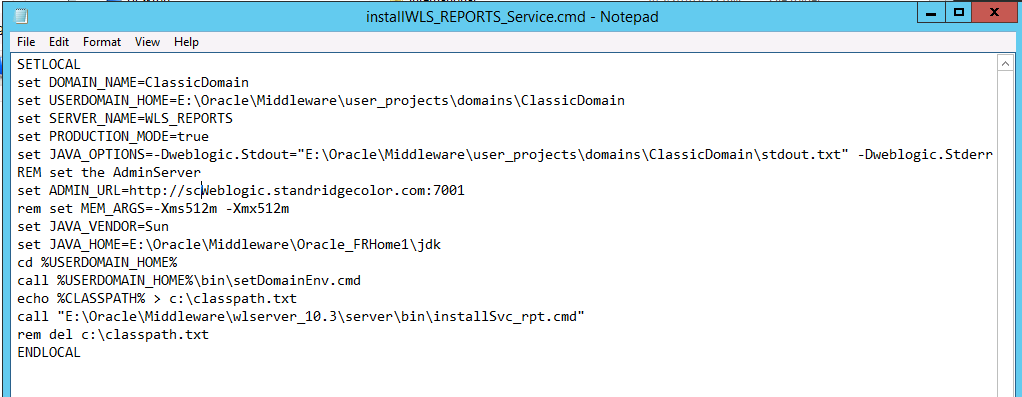
Edit and update file installWLS_REPORTS_Service.cmd
$ORACLE_HOME/wlserver_10.3/server/bin
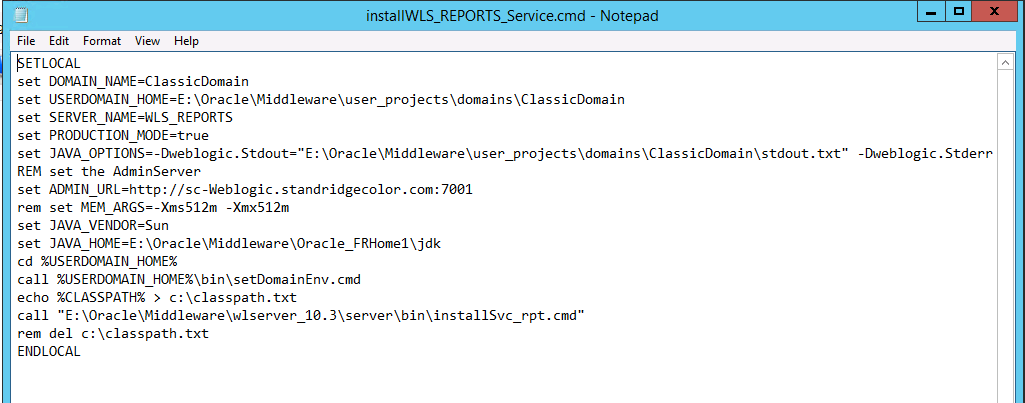
New Value :
Drop and recreate Weblogic services

Step 6: Restart Processes
Restart all Oracle Fusion Middleware processes.
Start all Oracle Fusion Middleware processes :
- Start NodeManager
- Start AdminServer
- Start ManagedServers (WLS_FORMS, WLS_REPORTS)
- Start OPMN components