
First Steps with Oracle Analytics Cloud
Ludovic Dessemon Oracle Cloud Practice Leader & Architect at RENAPS
4 years at Oracle as Cloud Architect and Customer Success Manager (Oracle EMEA CSM Taskforce)
20+ years of experience (Oracle technologies)
Introducing Oracle (Autonomous) Analytics Cloud
The goal of this document is to provide an overview on the 2 Analytics Cloud services provided by Oracle, 2 PaaS services among the Oracle Cloud Paas Portfolio :
- Oracle Analytics Cloud (OAC)
- Oracle Autonomous Analytics Cloud (AAC)
The 2 services are available in your Oracle Cloud Account "My Services" if you subscribed to Universal Credit Program

Note:
Some technical terms and abbreviations used in this article :
- OCI : Oracle Cloud Infrastructure, Oracle’s second-generation cloud infrastructure
- 4 regions (EMEA : Frankfurt and London, North America : Phoenix and Ashburn)
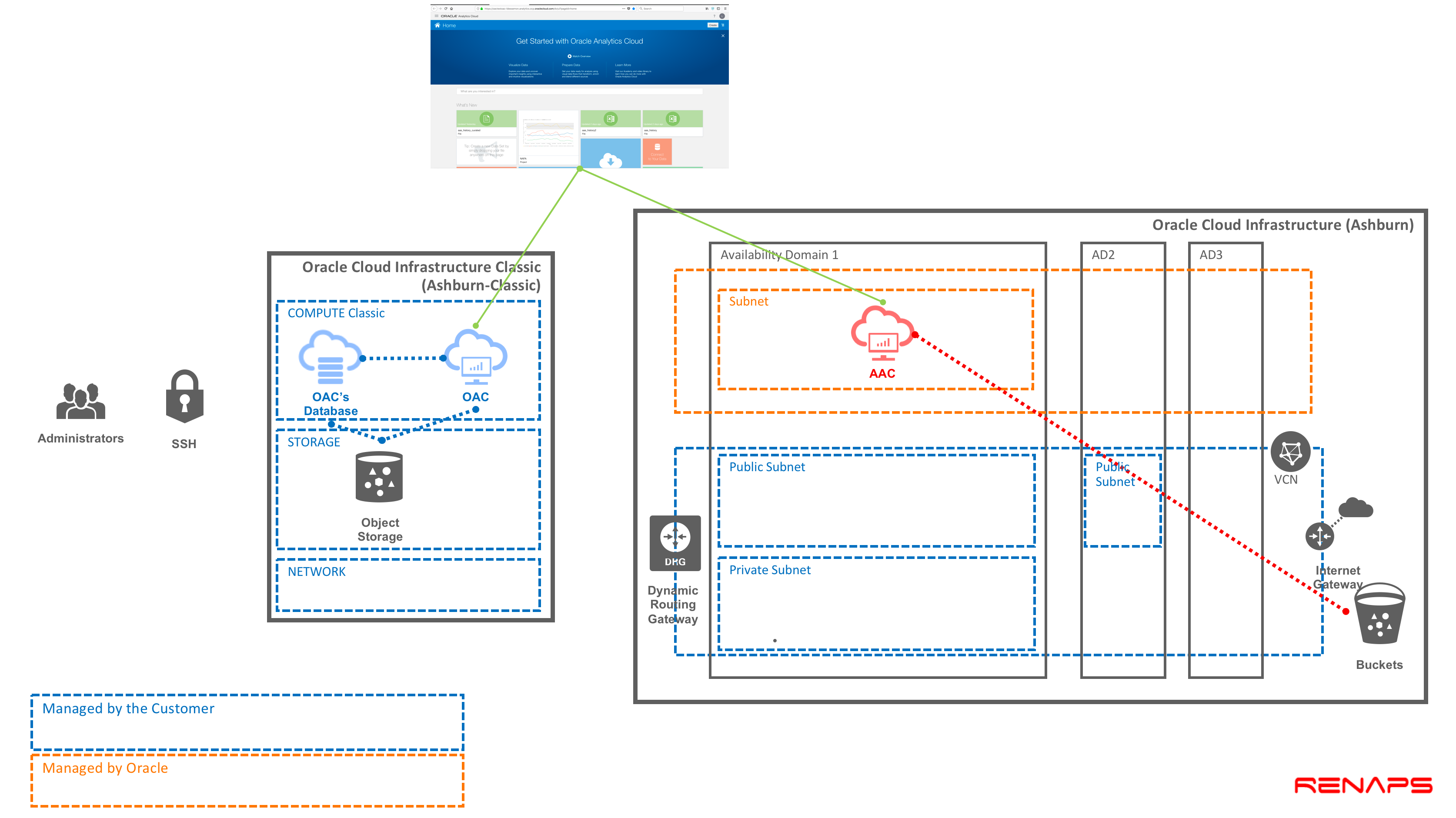
- An OCI region contains until 3 Availability Domains (AD-1, AD-2, AD-3). Availability Domains are isolated from each other, fault tolerant, and very unlikely to fail simultaneously. A Virtual Cloud Network (VCN) is a virtual version of a traditional network, including subnets, route tables, and Gateways on which your instances run. A cloud network resides within a single region but can cross multiple Availability Domains.
- OCI-C : Oracle Cloud Infrastructure Classic (No Availabilty Domains, No VCN, …) : Slough, Amsterdam, Chicago, Ashburn-Classic, …
- DBCS: Oracle Database Cloud Service
- IDCS: Oracle Identity Cloud Service
Why 2 Analytics Cloud offerings ? that’s because Oracle started with OAC, a user-managed platform. And with the entry of the new Autonomous services, Oracle offers now an Autonomous version of OAC:
Oracle Autonomous Analytics Cloud combines machine learning, adaptive intelligence, and service automation to create an analytics platform that breaks down barriers between people, places, data, and systems, fundamentally changing the way people analyze, understand, and act on information. Learn more here.
- Empowers business users to uncover more insights, quickly. Users can ask questions on their mobile devices, and natural language processing converts those questions into queries in the backend to deliver rich visualizations on their device. It uses machine learning to gain intelligence and proactively suggest insight on data the user might not even have asked for.
- Reveals hidden patterns and performance drivers through predictive insights and automatic natural-language explanations powered by machine learning.
- Provides predictive analytics on IoT data applying domain specific machine learning algorithms on large volumes of sensor data and historical patterns of failure.
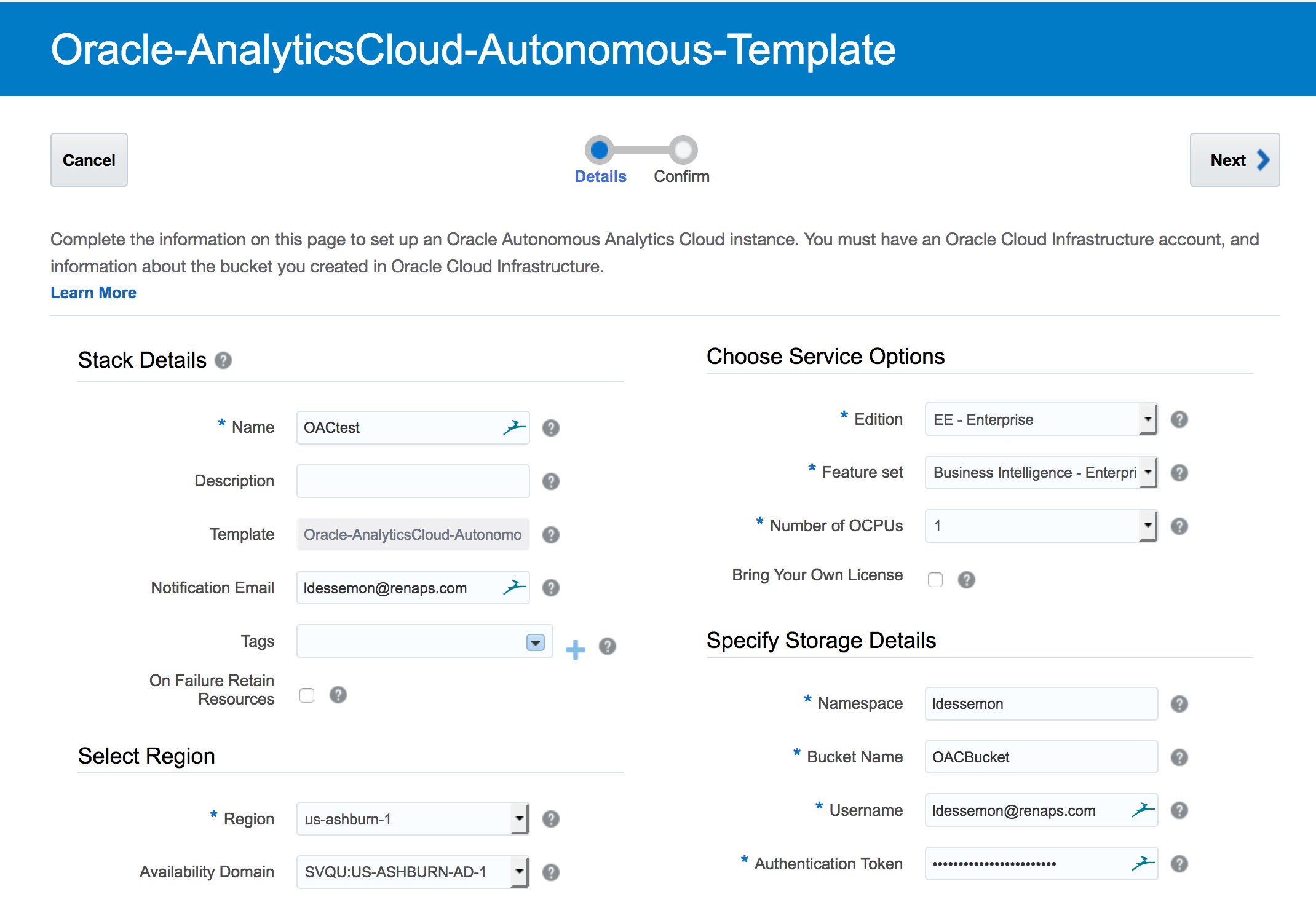
AAC is an Oracle-managed platform. You don’t have access to the underlying infrastructure, only the application over an URL. The AAC instance is provisioned within a Region/Availability Domain that you choose during the creation process.
Common features (OAC and AAC)
| . | OAC and AAC |
| Bring Your Own License | Supported, https://www.oracle.com/cloud/bring-your-own-license/faq/index.html |
| Standard Edition | Oracle Data Visualization capabilities on a customer-managed platform, including autonomous self-service discovery and data prep, across web, desktop, and mobile. |
| Data Lake Edition | Standard Edition + accelerated analysis via Essbase and support for creating scalable, shareable high performance data flows. |
| Enterprise Edition | Data Lake Edition + support for a full semantic layer that enables proactive analytics via Day by Day, lift and shift for OBIEE, and live optimized connectivity to data warehouses. |
| . | OAC | AAC |
| Platform | Managed by the customer | A fully managed version of Oracle Analytics Cloud that’s quick to set up and requires minimal administration |
| Datacenters | OCI-C (Ashburn-Classic, Chicago, Slough, Amsterdam) | OCI (Ashburn, Phoenix, London, Frankfurt) |
| Dependencies | Compute Classic and Object Storage Classic, Database Cloud Service, Identity Cloud Service (Oracle Universal Credits required) for using Oracle Cloud Infrastructure Load Balancing Classic | OCI Storage |
| Requirements | Object Storage Classic Container (1 for DBCS and 1 for OAC) / Database Cloud instance 12.1 or 11.2 (if your instance is a 12.2, it will not be visible on OAC's console) | OCI Storage Bucket for storing snapshots and analytics data sets |
| Pros | We have an access to the infrastructure (SSH) and we manage the network security rules. | Oracle-Managed platform, Built-in advanced artificial intelligence (AI) and machine learning algorithms |
| Cons | If your strategy is to use the new IaaS generation (OCI), OAC will be provisioned in a different Datacenter than OCI (eg. for region North America : OAC in Ashburn-Classic and OCI in Ashburn. I tested the bitrate between the OAC's VM in Ashburn-Classic and the database's VM is Ashburn : closely the same than between 2 VM in the same AD/Subnet). | We don’t have an access on AAC’s infrastructure. |
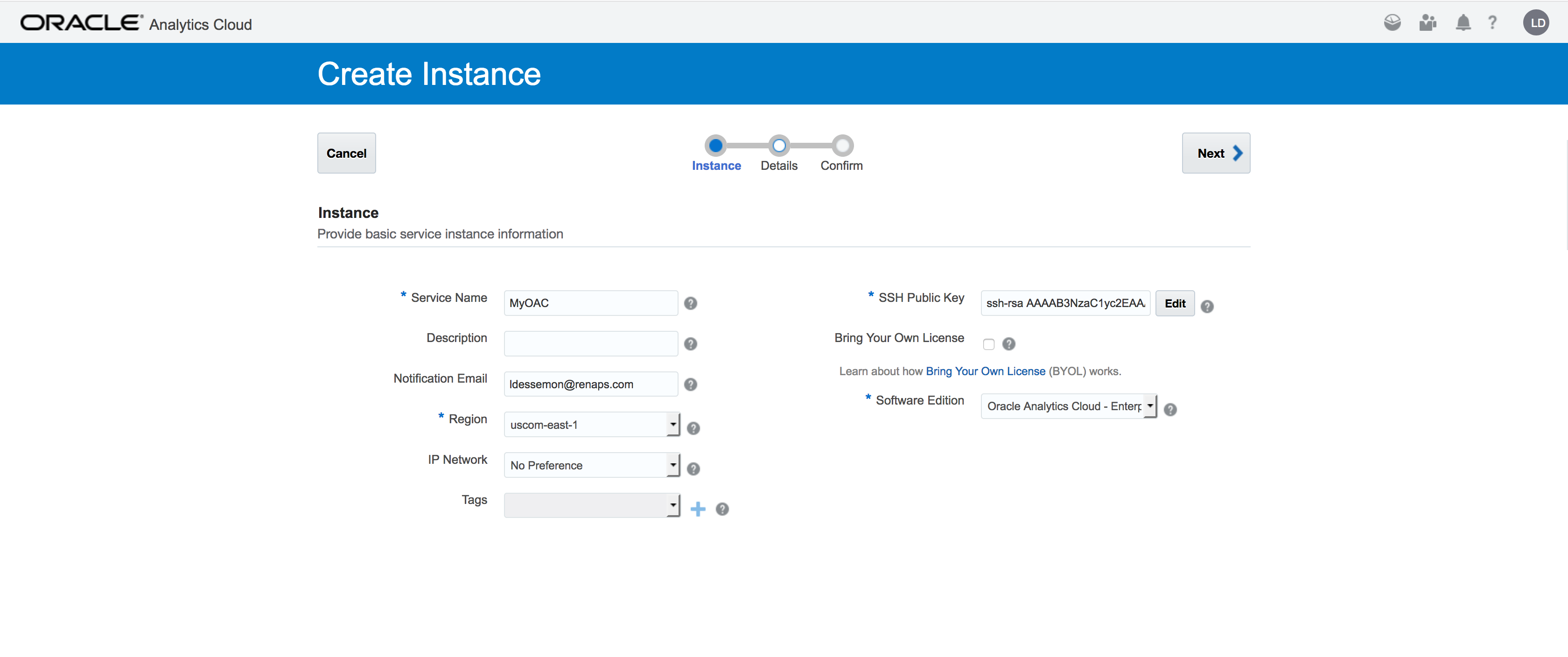
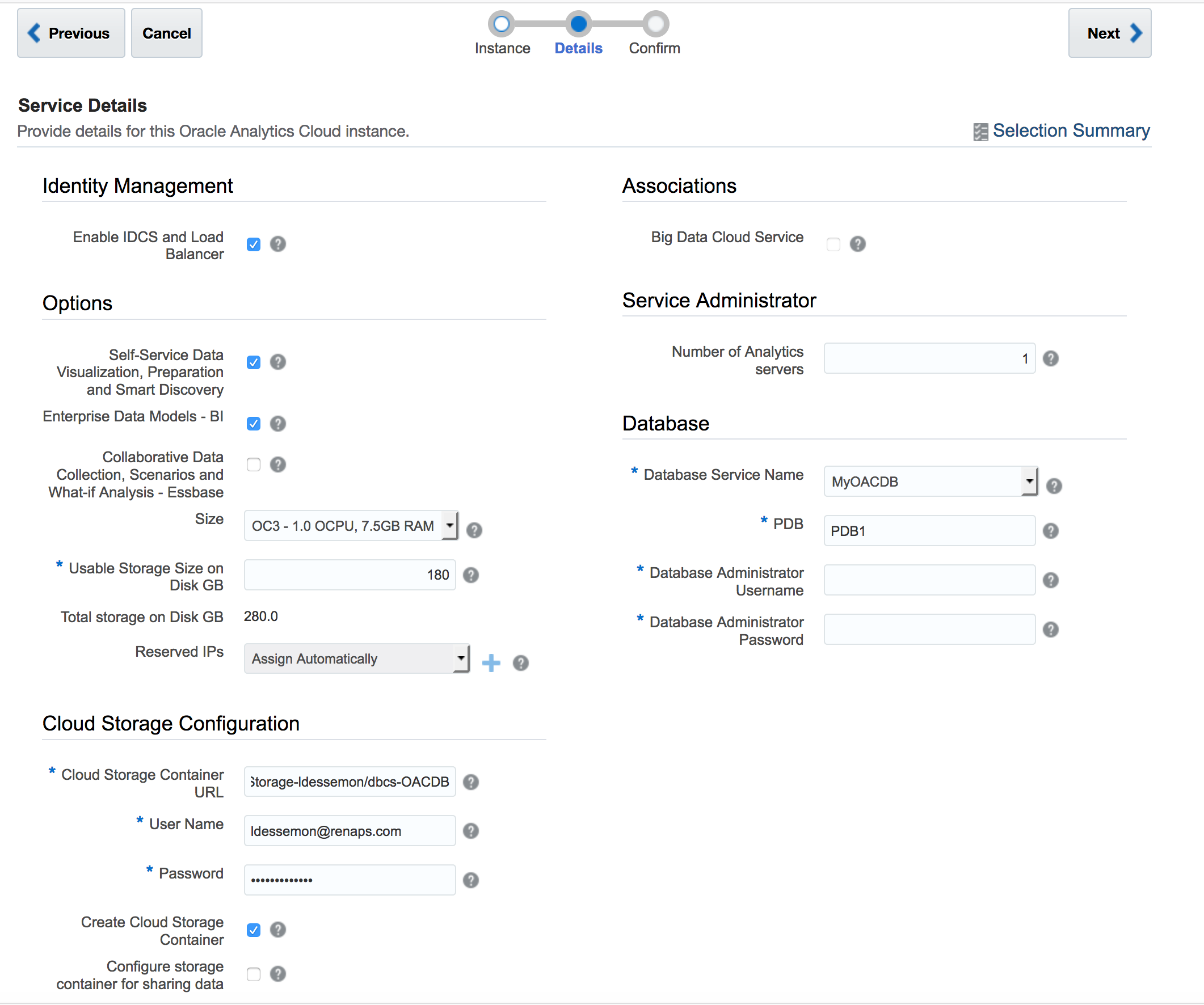
Creating an Instance
Oracle Analytics Cloud

Oracle Autonomous Analytics Cloud

Infrastructure Viewpoint (OAC vs AAC)
Demo
Get started with Oracle (Autonomous) Analytics Cloud
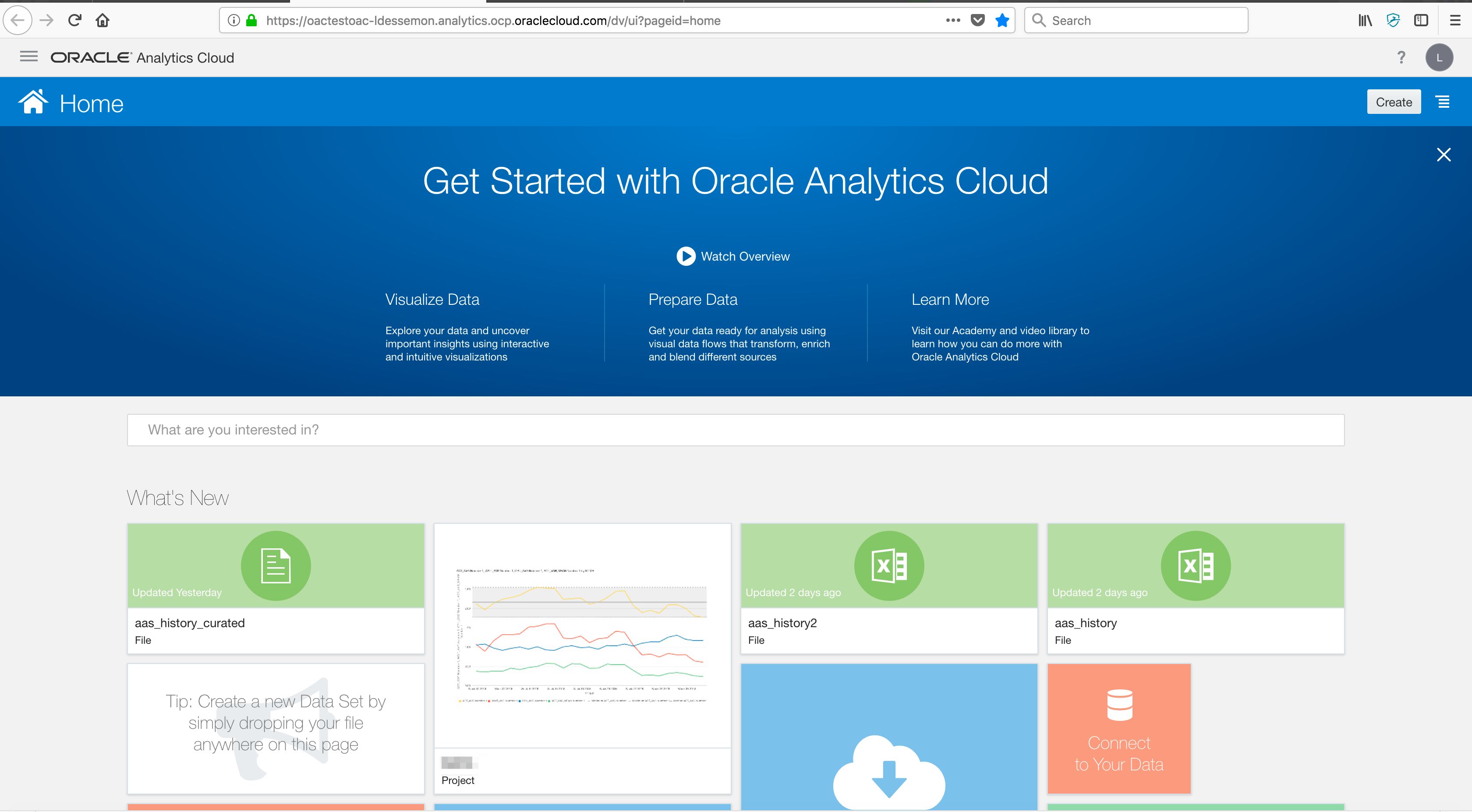
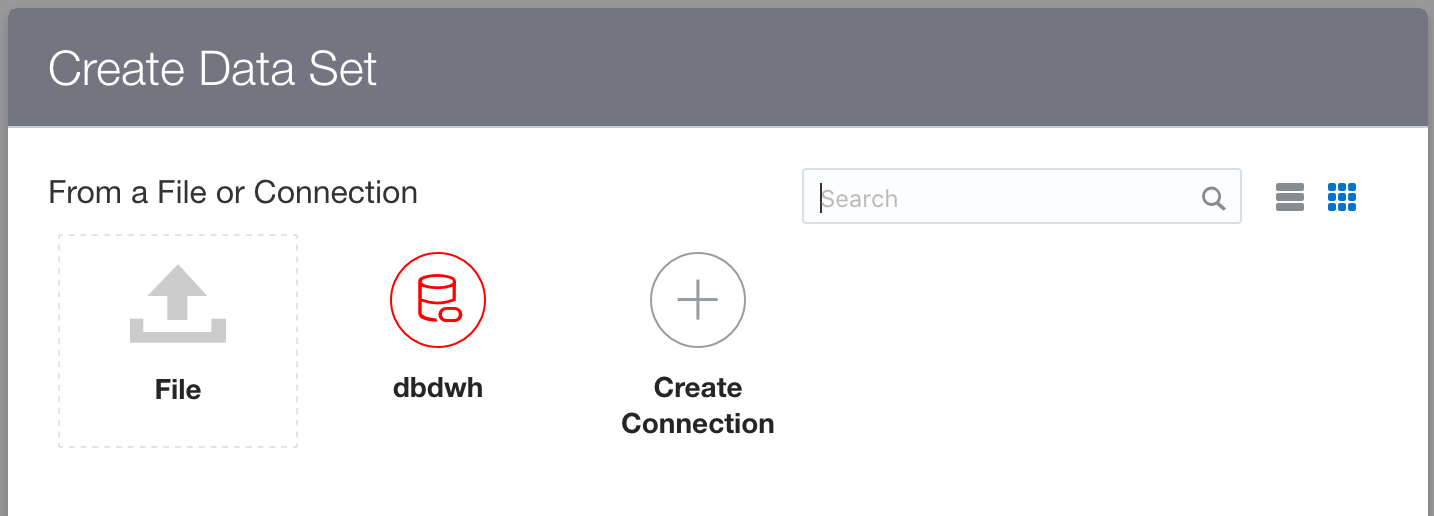
Create a Data Set from an Excel file (we can create many connections with many sources using a lot of Supported connectors)
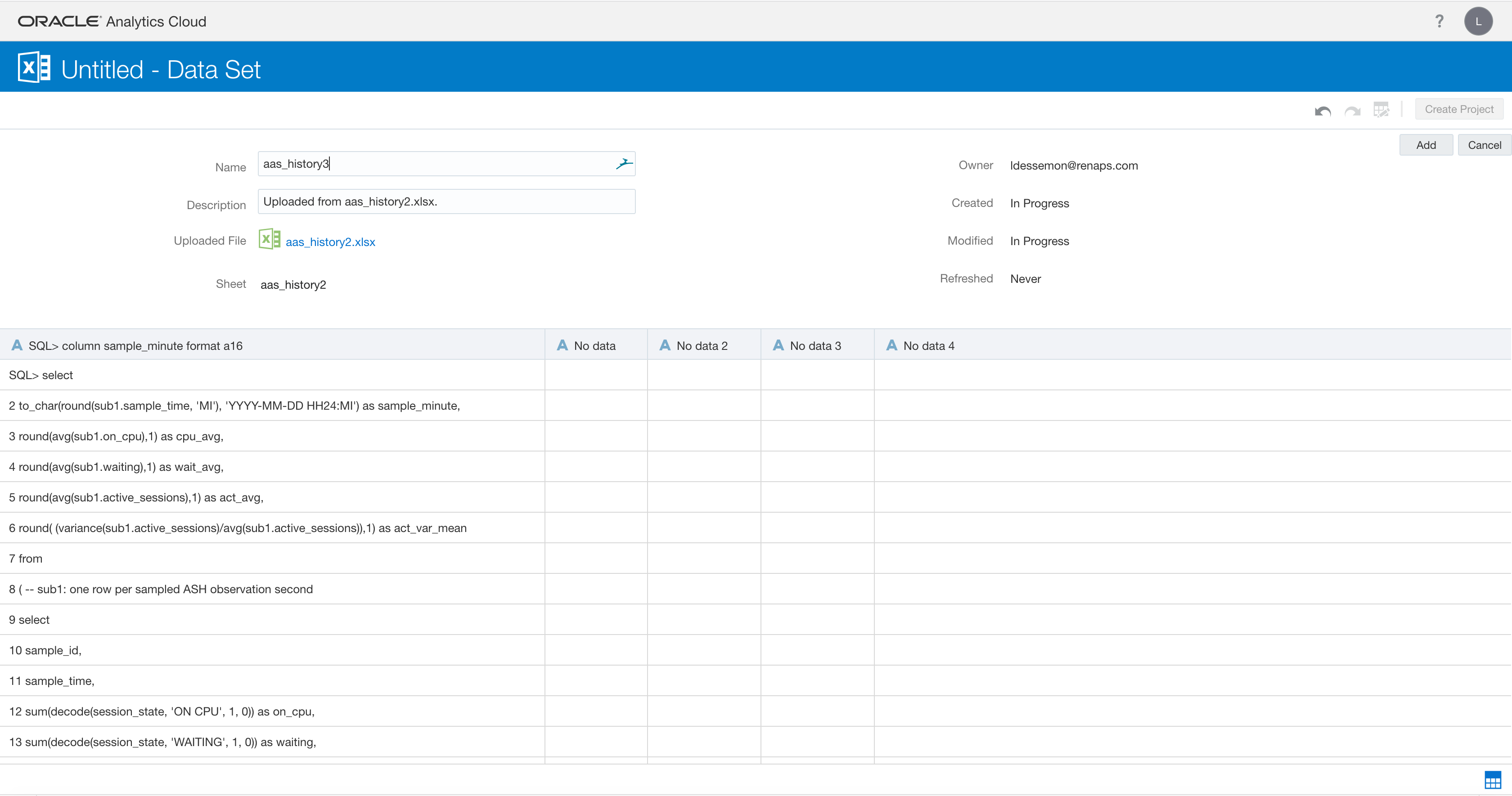
In my example I’m using an excel file generated from SQL*Plus. You can see below that the data set is not clean, we have to clean-up the data (eg. deleting some lines, converting some data, etc.). At this stage we only have to add this new data set.
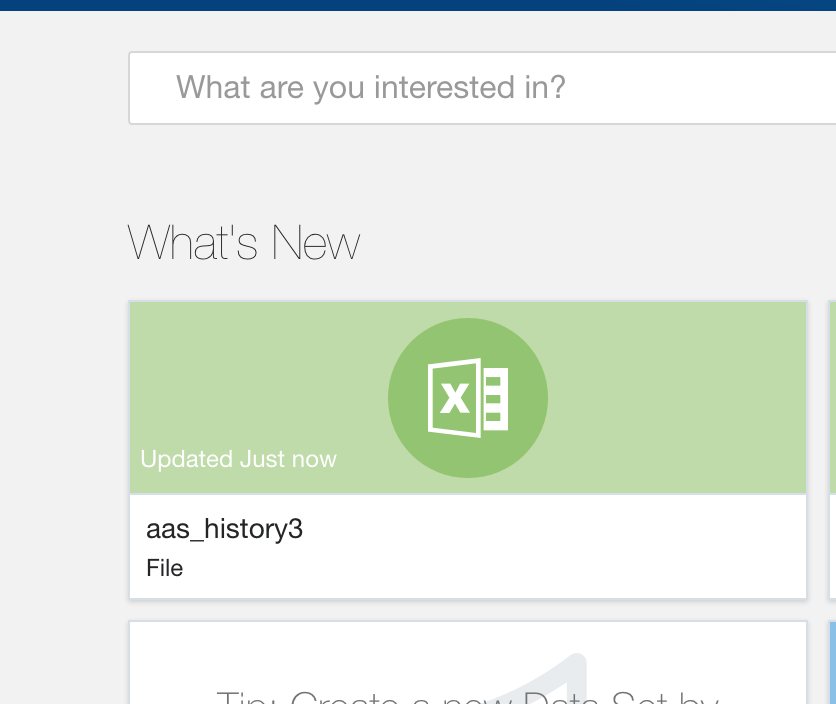
The new data set (eg. aas_history3 created above) is now added.
You can use data flows to produce curated (combined, organized, and integrated) data sets.
Data flows let you take one or more data sets and organize and integrate them to produce a curated set of data that you can use to easily create effective visualizations.
You use the Data Visualization’s data flow editor to select specific data from existing data sets, apply transformations, add joins and filters, remove unwanted columns, add new derived measures, add derived columns, and add other operations. The data flow is then run to produce a data set that you can use to create complex visualizations.
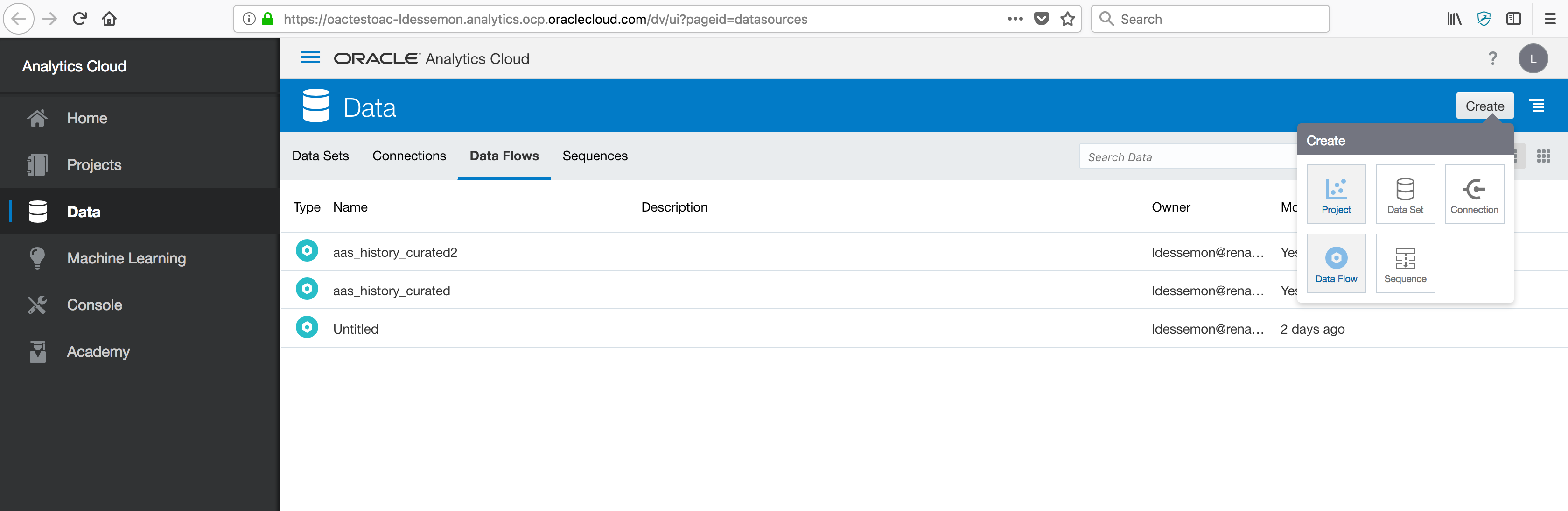
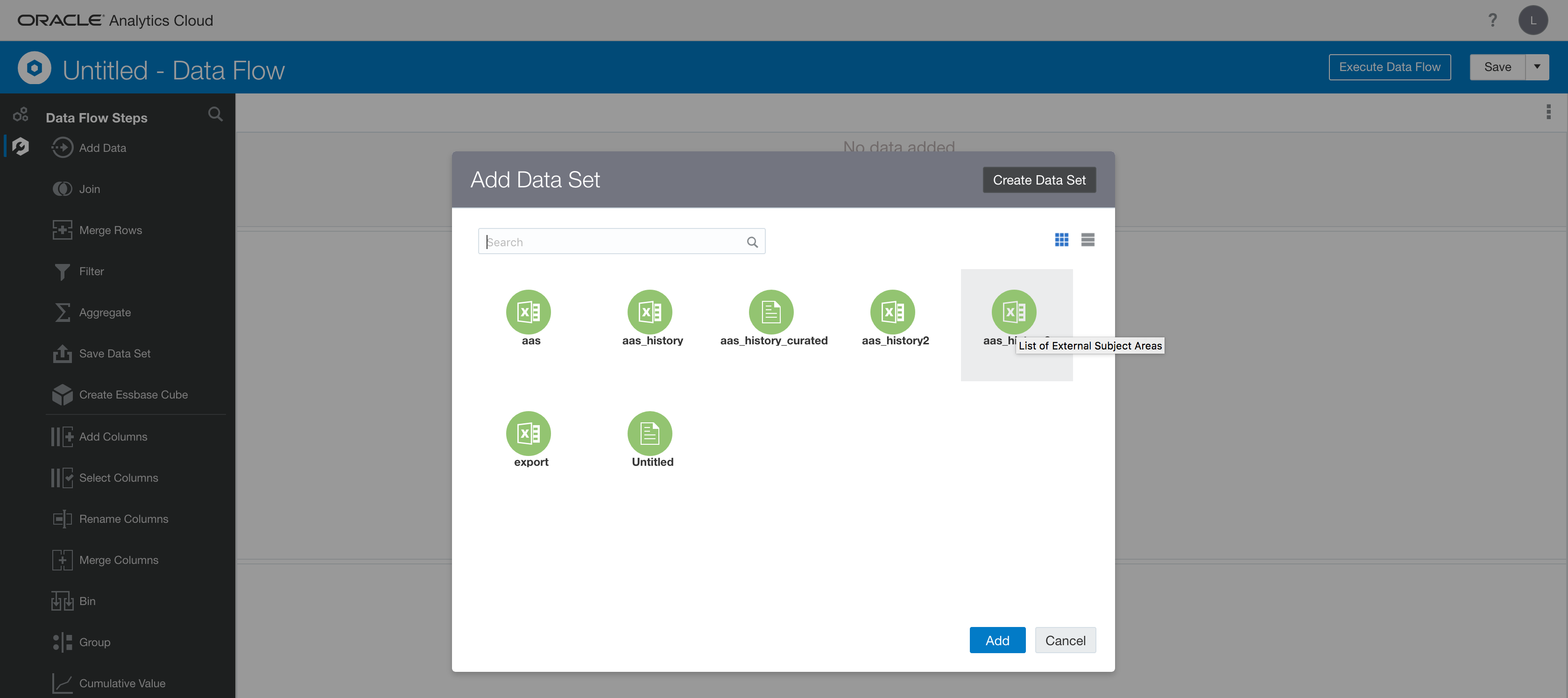
We use the Data Set created before.
Our Data Flow will look like this :

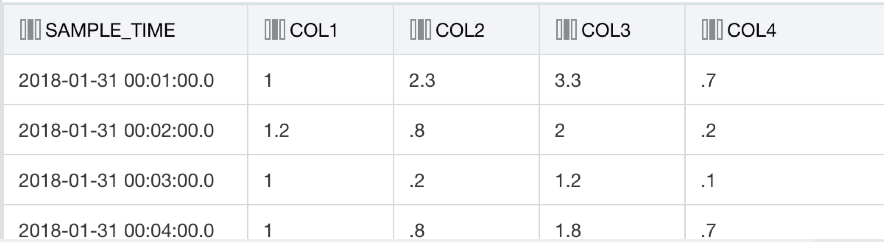
The Data Set before …

… and after the execution of the Data Flow
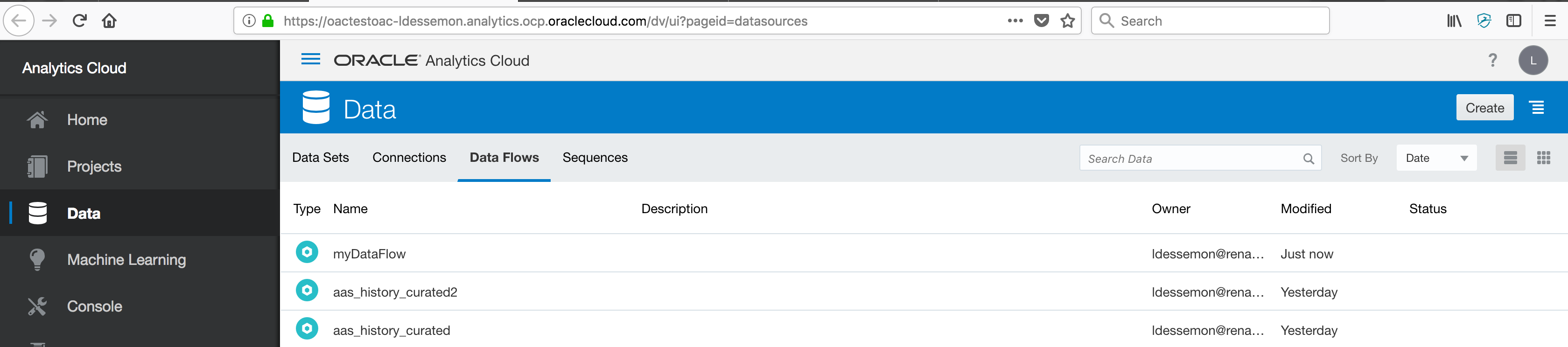
The Data Flow generates a new Data Set (curated)
We use this new Data Set for creating a Project.
Projects contain visualizations that help you explore your content in productive and meaningful ways. When you create a project, you select one or more data sets containing the data that you want to explore. Data sets contain data from subject areas, Oracle Applications, databases, or uploaded data files such as spreadsheets.
Typical Workflow for Exploring Data
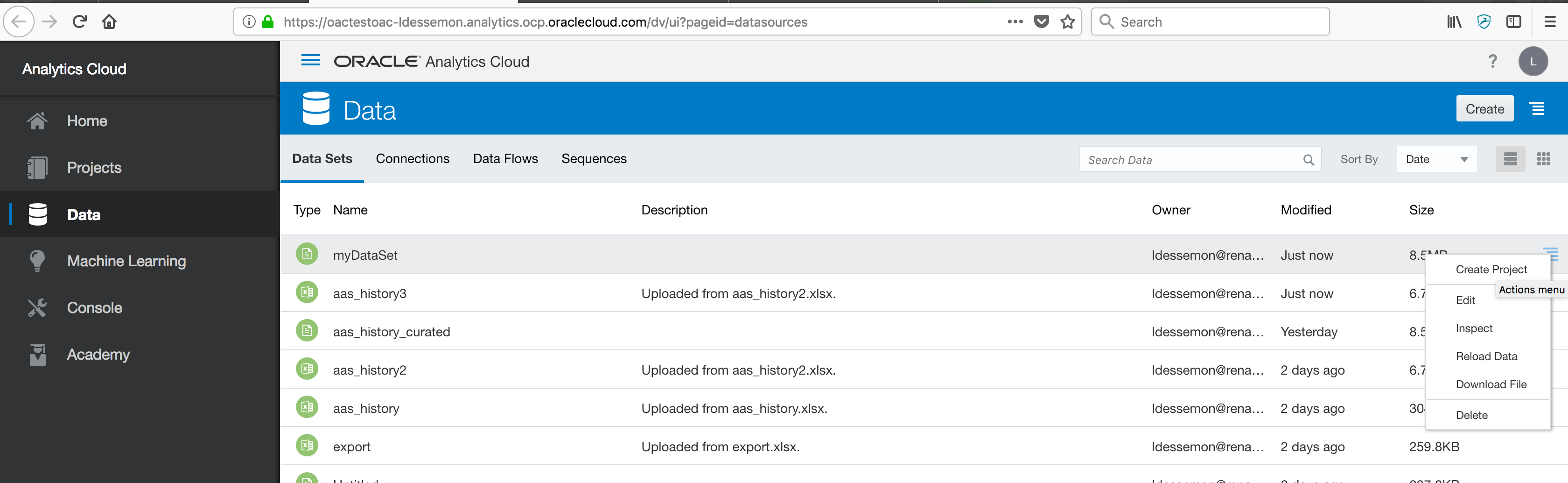
In my example it is pretty simple, 2 steps :
- Prepare : converting the columns to the good format (eg. String to Date, String to Number, …)
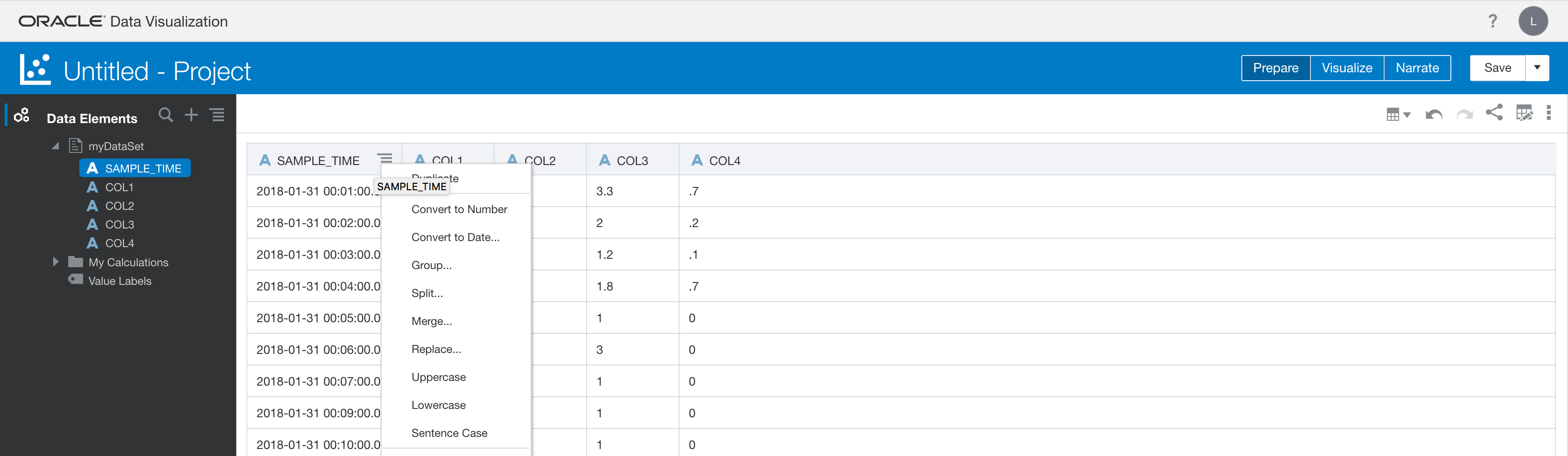
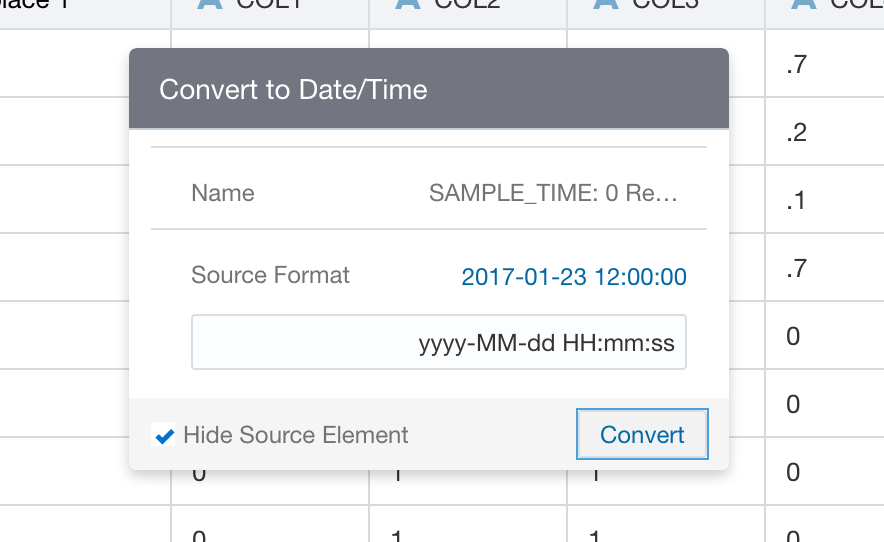
….
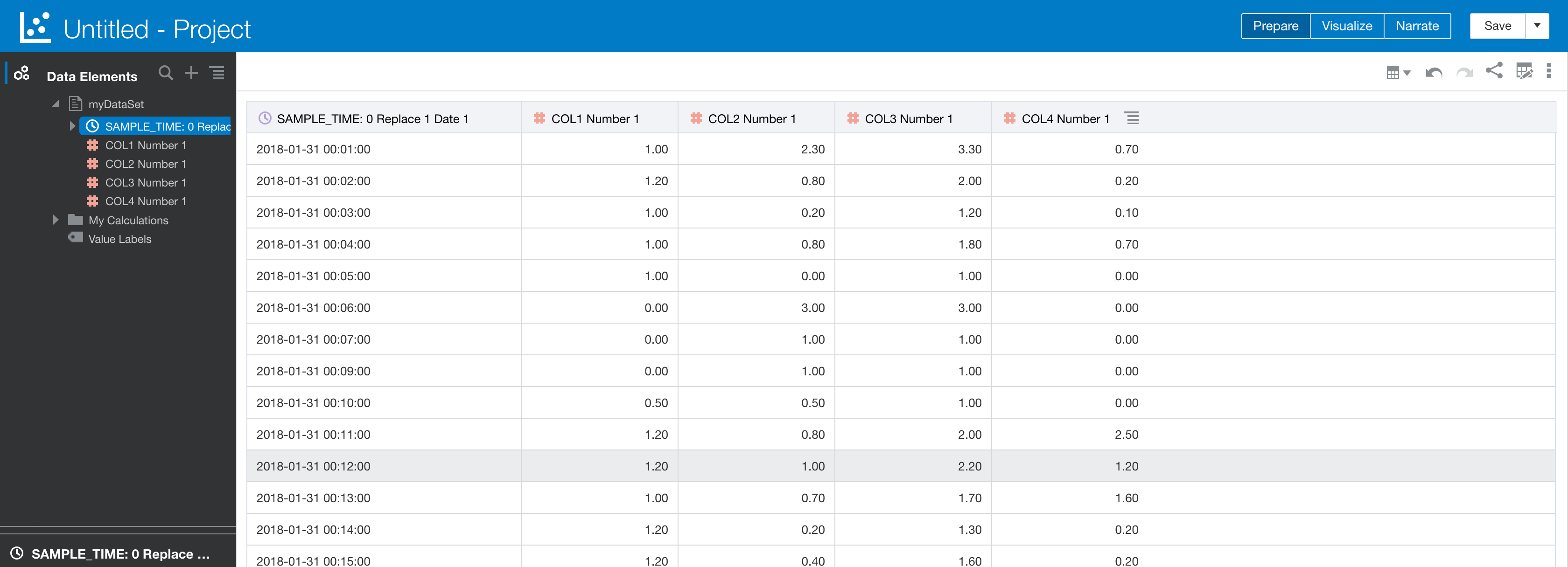
- Visualize :
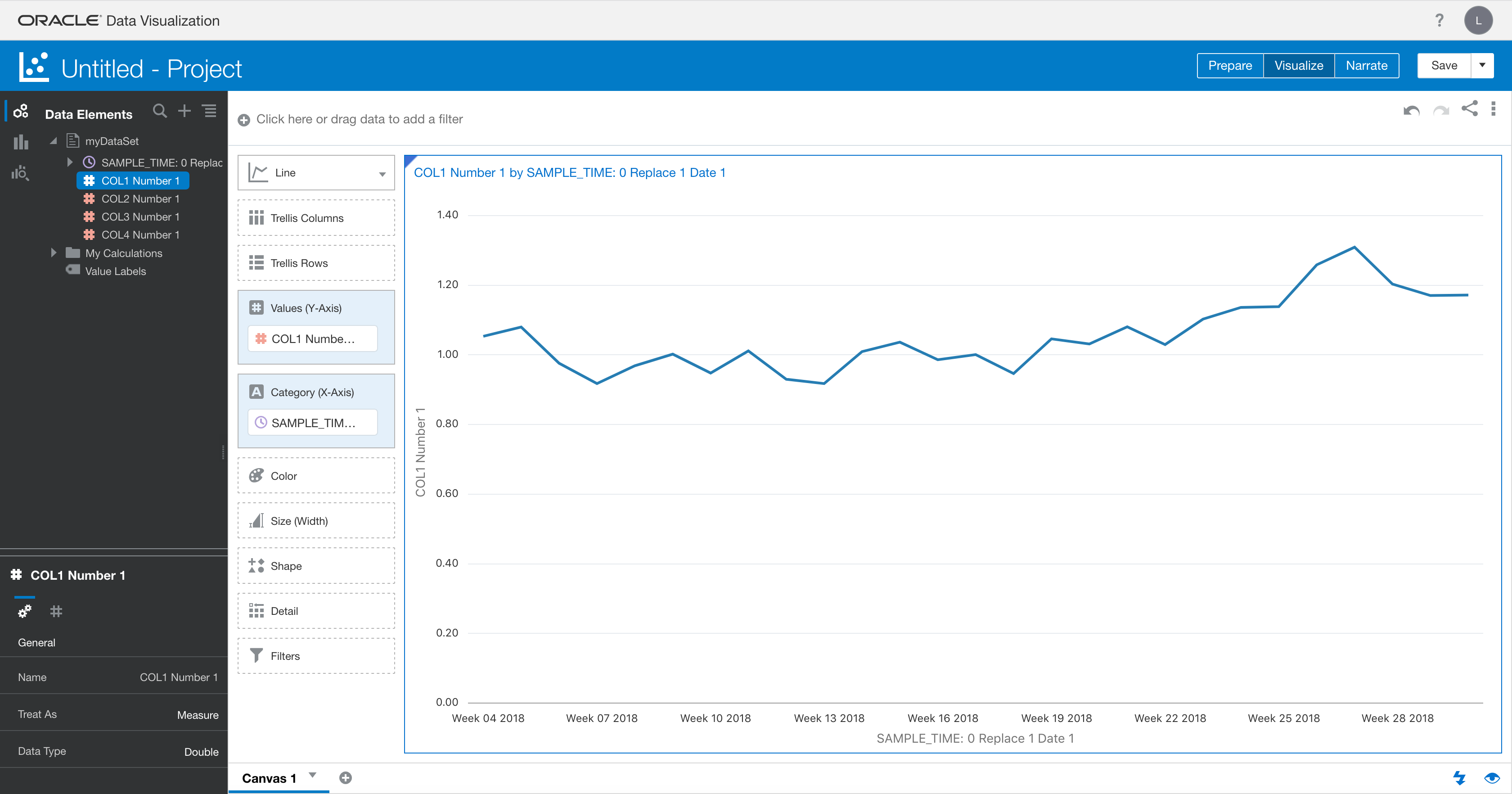
For more information on Preparing Data in Oracle Analytics Cloud :
https://docs.oracle.com/en/cloud/paas/analytics-cloud/acabi/preparing-data-oracle-analytics-cloud.pdf
Oracle Analytics Cloud, Mobile and Desktop
You can download Oracle Synopsis, a free analytics mobile app, from the Apple App Store and Google play => this app don't connects to your Analytics Cloud instance. It is limited to some data files (csv, xls, xlsx). On your mobile, open your data file and tap the "Share" icon or the "Open in .." action (if available) and select the "Synopsis" app.
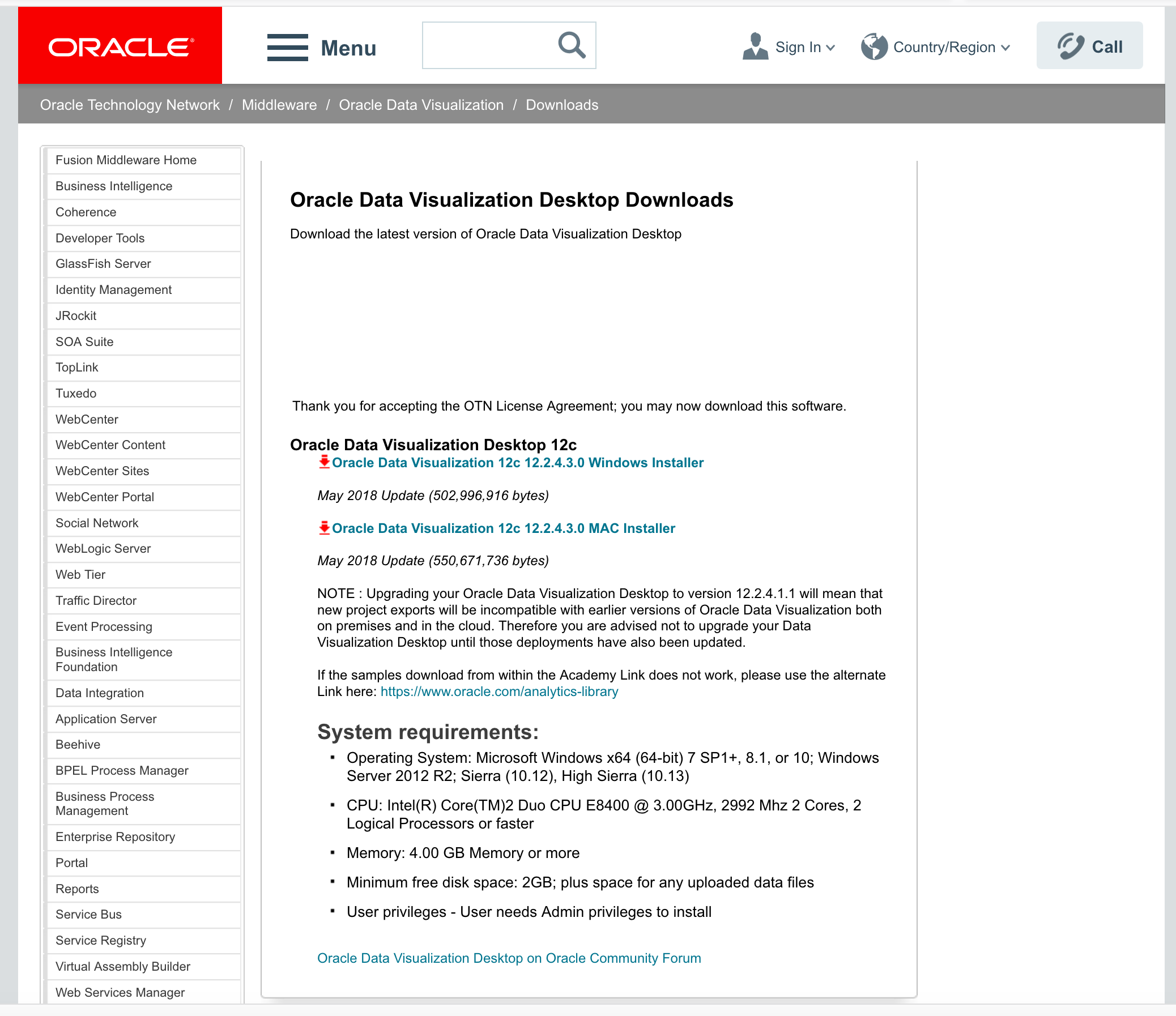
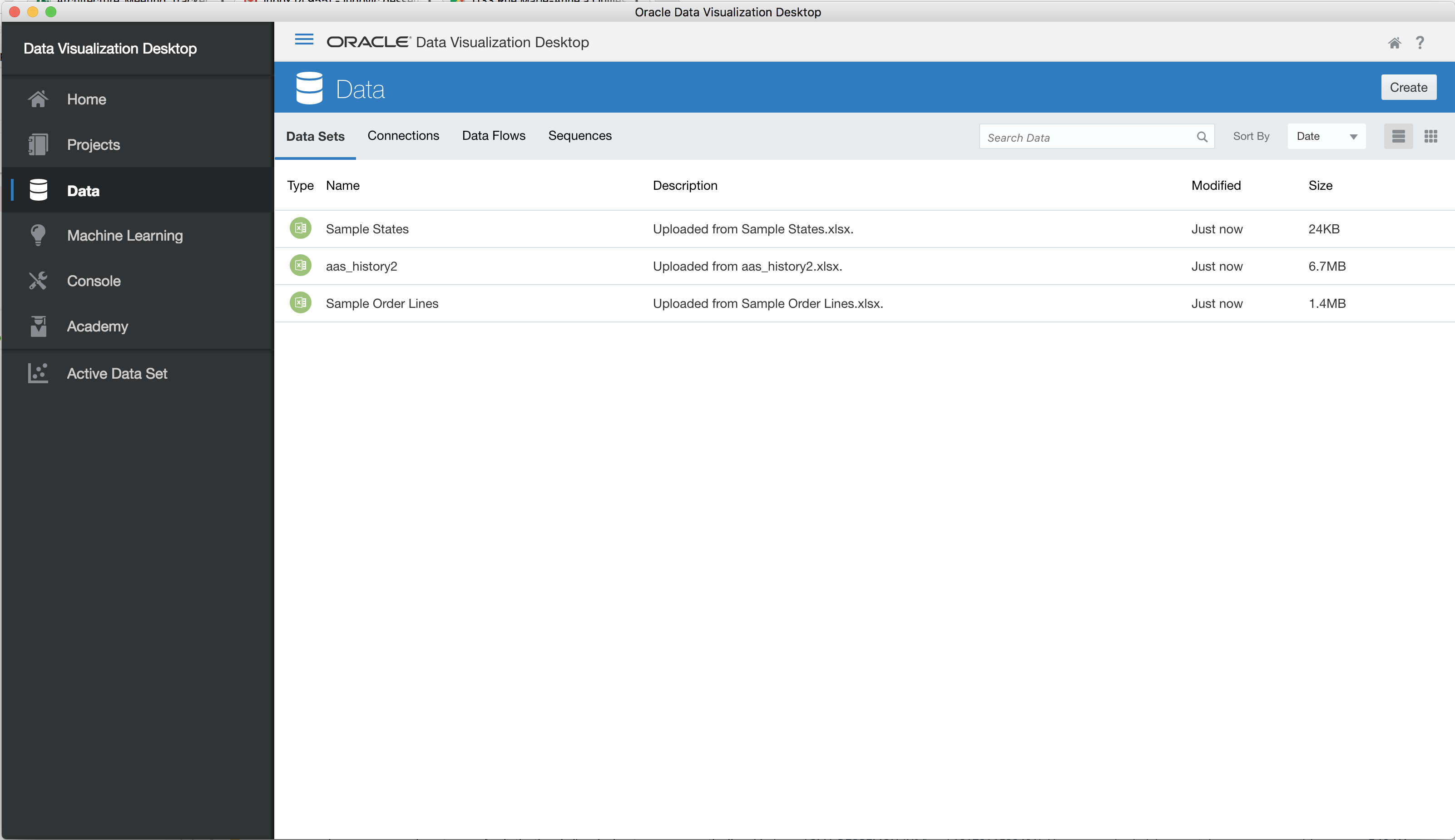
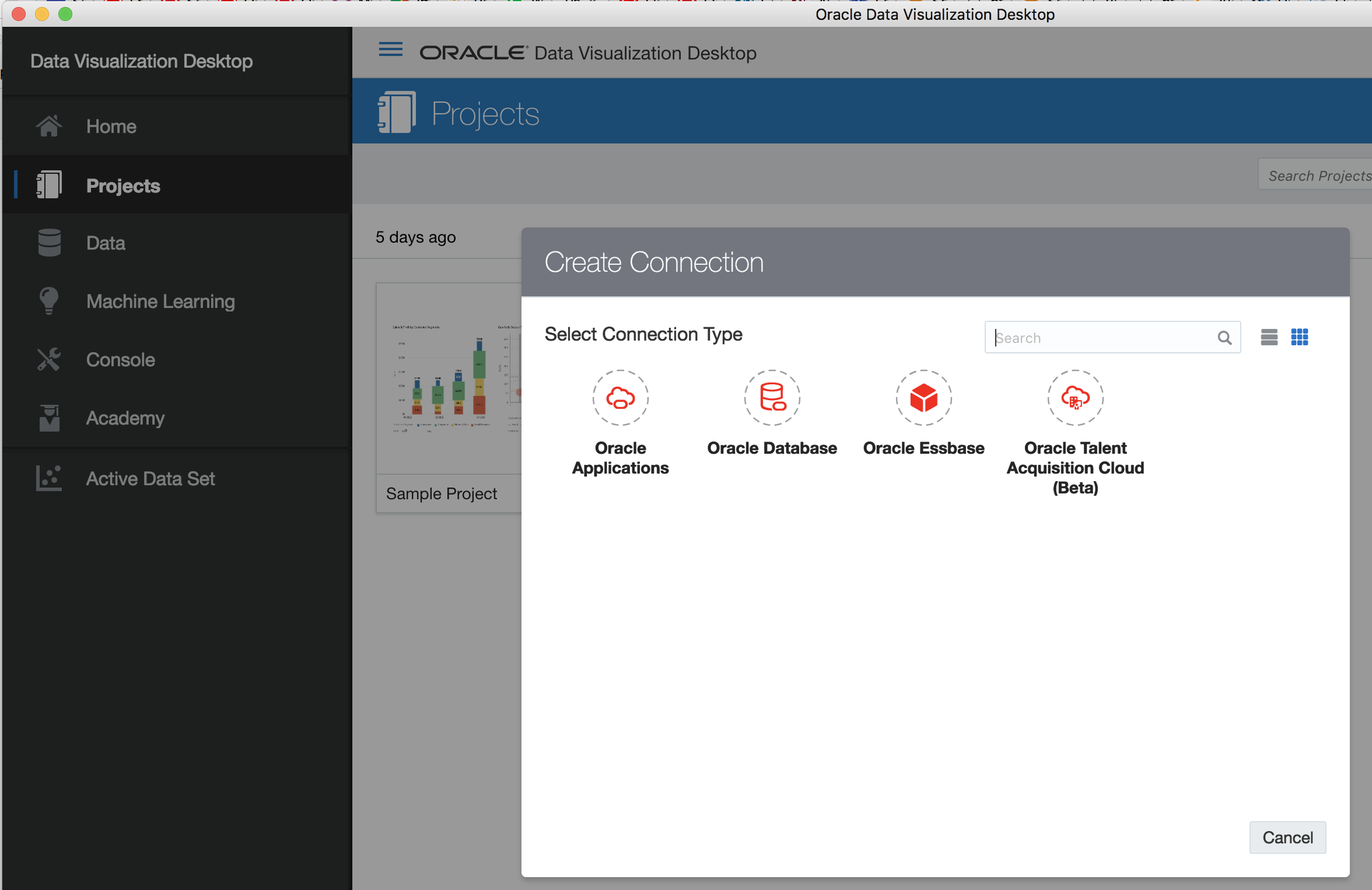
You can also download Data Visualization Desktop (Oracle Technology Network or from your OAC/AAC instance), for 50 users per OCPU. Data Visualization Desktop is not connected to your OAC/AAC instance but you can create some connections to your data using 4 connection types : Oracle Applications, Oracle Database, Oracle Essbase, Oracle Talent Acquisition Cloud (Beta), or opening an excel file. You can also import some external Projects (.dva file).
Try Oracle Autonomous Cloud Platform services, including Oracle Autonomous Analytics Cloud, by signing up for a Free Oracle Cloud Trial via cloud.oracle.com/tryit.